Here's a trick I use in PS CS1 to reduce noise.
Especially with using fill light or other curve adjustments bringing up the shadows you get shadow noise, but not so much in midtones and few in the lighter areas. However if you de-noise the whole picture you lose detail everywhere, also from the mid-tone and lighter areas. Even for normal pictures w/o much fill light I find it useful.
It works with every noise reduction software (I use NN) or photoshop action, and will be very similar for CS2 or CS3.
Here's the steps:
-1- Open the picture
-2- Create a new layer
-3- Copy the picture on the new layer ([alt][ctrl][shift]E)
-4- De-noise the top layer with whatever method you want to use
-5- Double click the top layer to open the blend options dialog
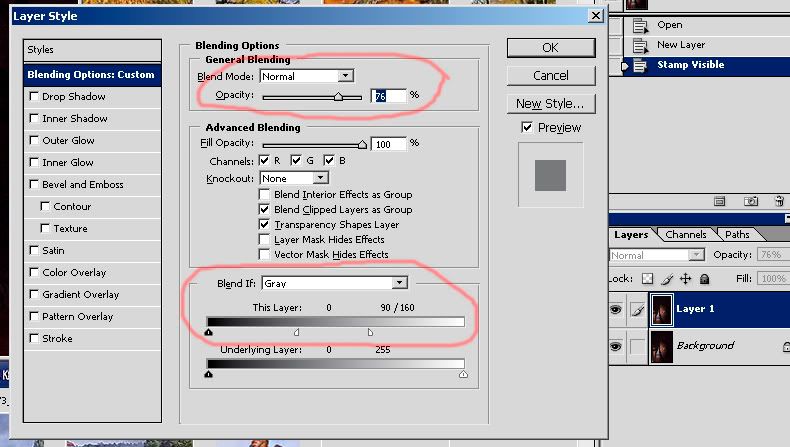
-6- I reduce opacity to about 75-80% in the general blending options, choose whatever you like
-7- Adjust the slider in "Blend if" as indicated.
If you do this you will use the original (bottom layer) image between 255 and 160, from 160 to 90 you gradually increase the noise reduction and below 90 you apply it full (all multiplied with whatever overall opacity you have chosen in the general blending box). In this way you only denoise where there is noise, and you leave the light areas unaffected. The numbers I gave above are just indications what I generally use, but no problem to alter them to achieve the exact effect you want.
Here's a screenshot of the blend options dialog in Photoshop so you can try it yourself.
Hope you find this useful.

